@9 PICKMEAPP INSTALLER
@9 PICKMEAPP INSTALLER
9.1 PickMeApp Installer Overview
9.1 PickMeApp Installer Overview
PickMeApp Installer is a free Windows application manager for everyday software tasks. Choose what you need to do below; the linked PickMeApp Pro manual sections explain the shared tools in detail.
Set up your PC with popular free applications
Start with the built-in PickMeApp Collection, a ready-to-use Web Profile of popular free applications. Browse the collection, select the programs you need, and let PickMeApp download and install them. Supported installers can run silently in a batch.
Explore the PickMeApp Collection · Install selected applications
Use an installer you already have
Give PickMeApp the path to your EXE or MSI setup, or import it from a download URL. You can use the original installer without waiting for someone to publish a package in a community catalog. Supported formats also include PAD, TAD and TAP.
Import installation packages into a profile
Keep your own software collection ready for reuse
Organize installers on your PC, USB drive, network share or server. Web Profile collection maps support HTTP/HTTPS, FTP and file://. Keep the collection and its installers locally for offline use.
Organize packages with profiles · Create your own collection
Update or repair the programs you use
Find newer versions available through your package collections and choose which applications to update. Run Repair for applications that support it. In Installer, you start installation and updates yourself; automatic installation from a profile is a Pro feature.
Update an application · Repair an application
Understand what occupies your disk space
See application-size estimates together with hidden installation-cache size. Get a fuller picture of the space occupied by your software before deciding what to keep or remove.
View application details and cache size
Stop an application that keeps running in the background
See the executables and services belonging to an application and which are running. Start or stop individual components, or stop the application's processes and services together—even when closing its window leaves them running.
Remove several unwanted programs
Select the applications you no longer need and run their uninstallers from one place. PickMeApp attempts to identify quiet uninstall commands; some programs still need interaction.
Uninstall selected applications
Find out about transferring your applications to another PC
Request an emailed report comparing your installed applications with recorded successful PickMeApp transfers. Use it to assess your applications before choosing Pro or Light for capture and transfer.
9.2 PickMeApp Installer vs PickMeApp Pro
9.2 PickMeApp Installer vs PickMeApp Pro
PickMeApp Installer provides free tools for everyday software management. PickMeApp Pro brings those tools together with advanced capabilities for managing the full Windows application life cycle.
Choose Installer for everyday software management
Install programs from the built-in collection or your own setup files, choose available updates, run or stop applications, and remove programs you no longer need—all from one place.
Explore what Installer can do for you.
Choose Pro for the full application life cycle
Manage your software from discovery, download and installation through everyday use, updates and repair, to backup, relocation, transfer and removal. Pro includes Installer's everyday tools and goes further, helping you maintain, preserve and reuse your applications throughout their life on your computers.
Need to keep an installed application and its settings for later, or take it to another PC? Capture supported applications. Need more space on your system drive? Relocate supported applications to another drive.
Want the same package collection available across your computers? Use Pro's InstallShare profile to synchronize your collection. InstallShare synchronization is not included in Installer.
Let Pro handle recurring work with automatic installation and updates from profiles, or automate operations through its command-line interface. Automatic profile installation is a Pro feature; Installer lets you start installation and updates yourself.
Which edition should you use? Choose Installer for free everyday management, or Pro to manage the full application life cycle, automate maintenance and keep your software collections connected across PCs. See the full feature comparison and downloads.
9.3 Can You Transfer Your Apps?
9.3 Can You Transfer Your Apps?
Thinking of moving to another PC? Get a free report showing how the applications on your PC compare with programs successfully transferred using PickMeApp. See which applications already have matching transfer records before choosing Pro or Light.
PickMeApp Installer collects information about your installed applications and sends it for comparison with recorded successful transfers. You can request the report without buying a PickMeApp license.
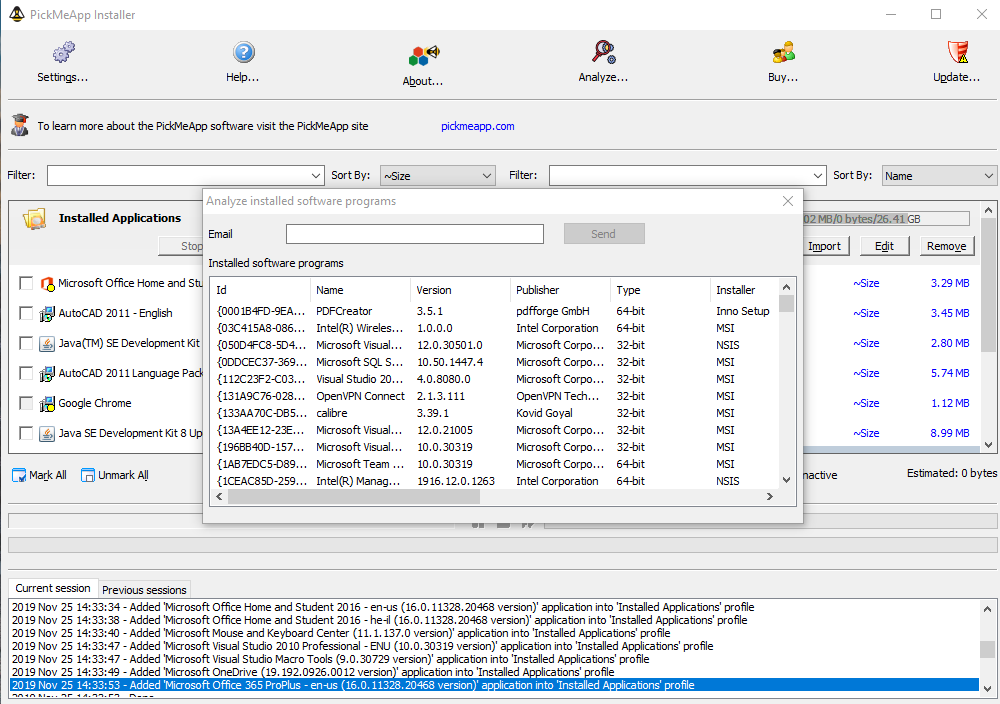
Get your free report
- Click the Analyze button located on the upper bar of the PickMeApp Installer.
- Provide an email address to where the final report can be sent.
- Click the Send button.
Once the PickMeApp servers finish their supportability analysis, it sends a detailed report via email.
Note: Only one (1) analysis request can be sent every 15 minutes.
Read your results
Your report uses stars to show how closely the applications on your PC match recorded successful transfers. More stars mean a closer match. The stars describe transfer history, rather than a new capture or transfer test on your PC.
You can also search the transferable applications catalog to explore recorded transfers. For the next step, see capturing an application with Pro or compare editions and downloads.